

Table of Contents
This guide will show you how to shrink and/or change drive letters in Windows Server
We added a new drive for this document.
Step 1 #
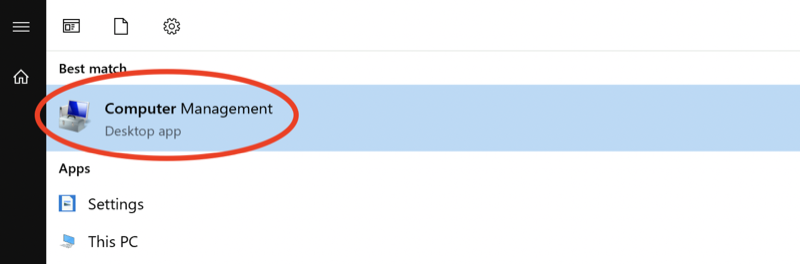
Open start menu and type Computer Management
Step 2 #
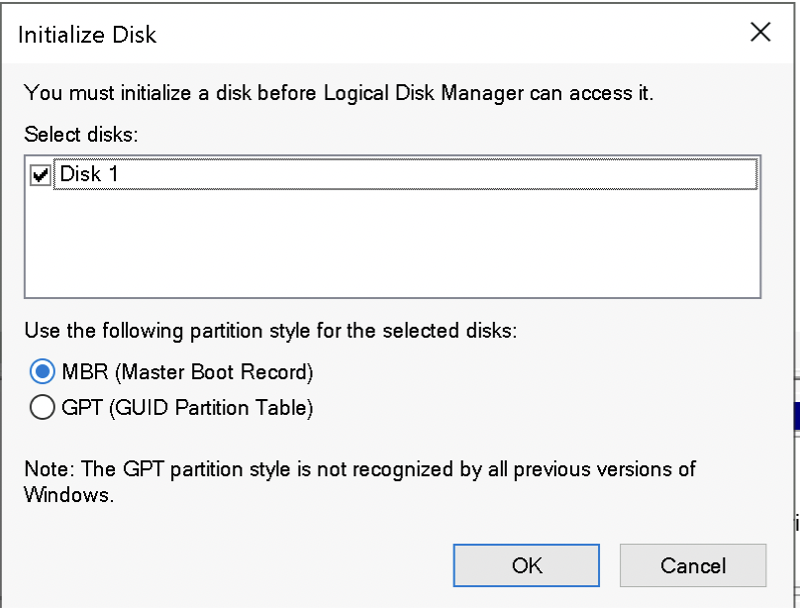
If your drive wasn’t initialized, you can initialize it by clicking right mouse button:

Step 3 #
And choose Initialize Disk

Step 4 #
And follow the creator:
Step 5 #
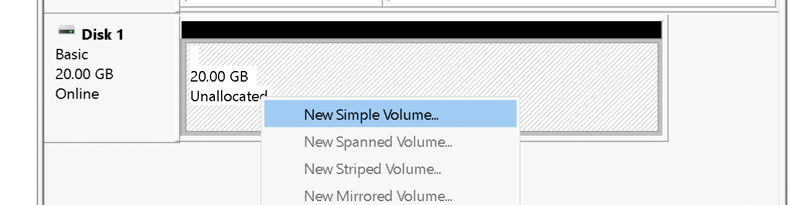
After initialization, click the right mouse button on the drive:
Step 6 #
Create a new volume and follow the creator:
Step 7 #
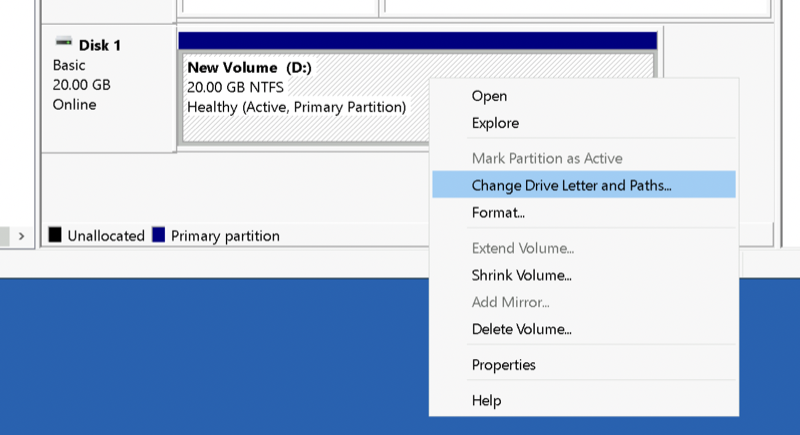
Click now on created volume right mouse button. Now you can change the drive letter or shrink your current partition:
If you want to shrink your current partition: #

If you want to change your drive letter: #


